
> For the complete documentation index, see [llms.txt](https://docs.algomojo.com/algomojo/llms.txt). Markdown versions of documentation pages are available by appending `.md` to page URLs; this page is available as [Markdown](https://docs.algomojo.com/algomojo/my-strategies/watchlist/futures-and-options.md).

# Futures & Options

<figure><img src="/files/XrPw7VikfcPDj2iAny67" alt=""><figcaption></figcaption></figure>

The watch list is a fundamental feature that allows users to include multiple stock symbols within a single Future strategy for their convenience. Each Future strategy can have its own distinct watch list.&#x20;

## **How to upload symbols to the watchlist?**

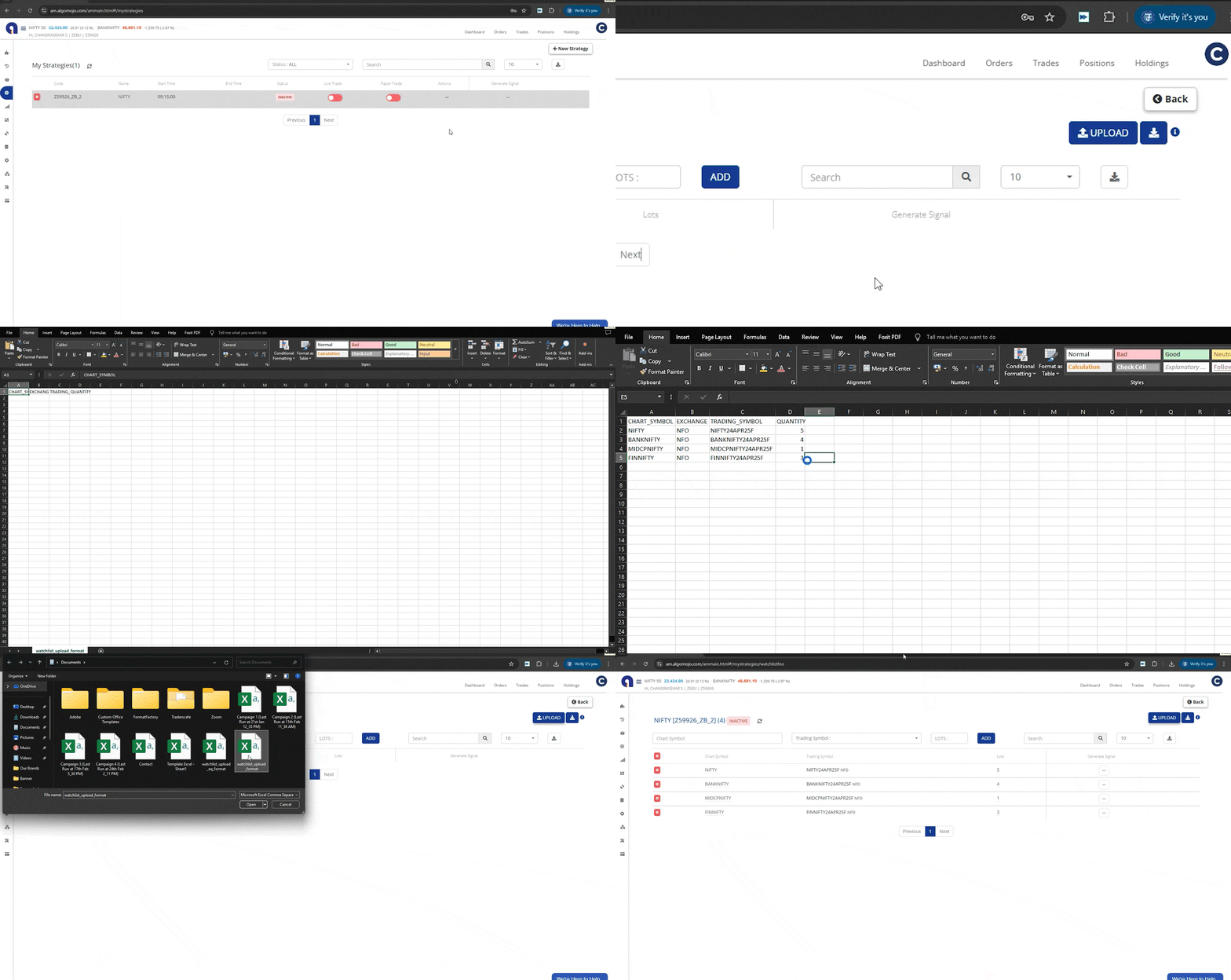
<figure><img src="/files/aWqCAPvo0UjR4dV5BN8x" alt=""><figcaption></figcaption></figure>

The Algomojo app enables users to upload their watch list directly from their system via a CSV file using the upload button in the watchlist section.

### CSV Format

The basic format to be followed by a user while uploading a CSV file to the watchlist section.

<table><thead><tr><th width="197">Columns </th><th width="259">Description</th><th width="92">Mandatory</th><th>Possible Values </th></tr></thead><tbody><tr><td>CHART_SYMBOL</td><td>Symbols that are compatible with various tools such as TradingView, Amibroker, and Chartink</td><td>Yes</td><td>INDHOTELS</td></tr><tr><td>EXCHANGE</td><td>NSE, NFO, BSE and BFO</td><td>Yes</td><td>NSE</td></tr><tr><td>TRADING_SYMBOL</td><td>Symbols which are accepted by the broker</td><td>Yes</td><td>INDHOTELS-EQ</td></tr><tr><td>QUANTITY</td><td>Total number of stocks</td><td>Yes</td><td>35</td></tr></tbody></table>

## Tradingview Watchlist&#x20;

```
 {
  "date": "{{timenow}}",
  "symbol": "{{ticker}}",
  "action": "{{strategy.order.action}}"
 }
```

If you plan to trade multiple symbols using a single strategy, you must add all the symbols to the watch list. The chart symbol serves as a unique identifier for the script you wish to trade. Make sure to include the specified Custom Data in the Tradingview Message box, and insert the chart symbol in the "{{ticker}}" field. Additionally, you will need to create separate alerts for each symbol you intend to trade on Tradingview.

**Video Tutorial:**&#x20;

{% embed url="<https://vimeo.com/993925094>" %}

The video above can be used as a reference.

### **How do you delete all symbols from the watchlist?**

Managing your watchlist just got easier! With the new **“Delete All”** functionality, you can now quickly remove all symbols from your watchlist in one click, making it simpler to organize and update your trading symbols.

<figure><img src="/files/X14zScw9XHAZ50Escm77" alt=""><figcaption></figcaption></figure>

<figure><img src="/files/W0IYQMVLPIa9sFcmbTb2" alt=""><figcaption></figcaption></figure>


---

# Agent Instructions
This documentation is published with GitBook. GitBook is the documentation platform designed so that both humans and AI agents can read, navigate, and reason over technical content effectively. Learn more at gitbook.com.

## Querying This Documentation
If you need additional information that is not directly available in this page, you can query the documentation dynamically by asking a question.

Perform an HTTP GET request on the current page URL with the `ask` query parameter, and the optional `goal` query parameter:

```
GET https://docs.algomojo.com/algomojo/my-strategies/watchlist/futures-and-options.md?ask=<question>&goal=<endgoal>
```

`ask` is the immediate question: it should be specific, self-contained, and written in natural language.
`goal` is optional and describes the broader end goal you are ultimately trying to accomplish on behalf of the user. GitBook uses it to tailor the answer towards what is most useful for that goal.

The response will contain a direct answer to the question and relevant excerpts and sources from the documentation.

Use this mechanism when the answer is not explicitly present in the current page, you need clarification or additional context, or you want to retrieve related documentation sections.
