
# Futures & Options

<figure><img src="https://3325206621-files.gitbook.io/~/files/v0/b/gitbook-x-prod.appspot.com/o/spaces%2FVBwGEcLA1yP8wEVFrXXf%2Fuploads%2FJNe7udF3Ow37fBAipW2b%2FScreenshot%202024-09-03%20094424.png?alt=media&#x26;token=b832a8a4-7d09-489a-968b-6eeb4f095f55" alt=""><figcaption></figcaption></figure>

The watch list is a fundamental feature that allows users to include multiple stock symbols within a single Future strategy for their convenience. Each Future strategy can have its own distinct watch list.&#x20;

## **How to upload symbols to the watchlist?**

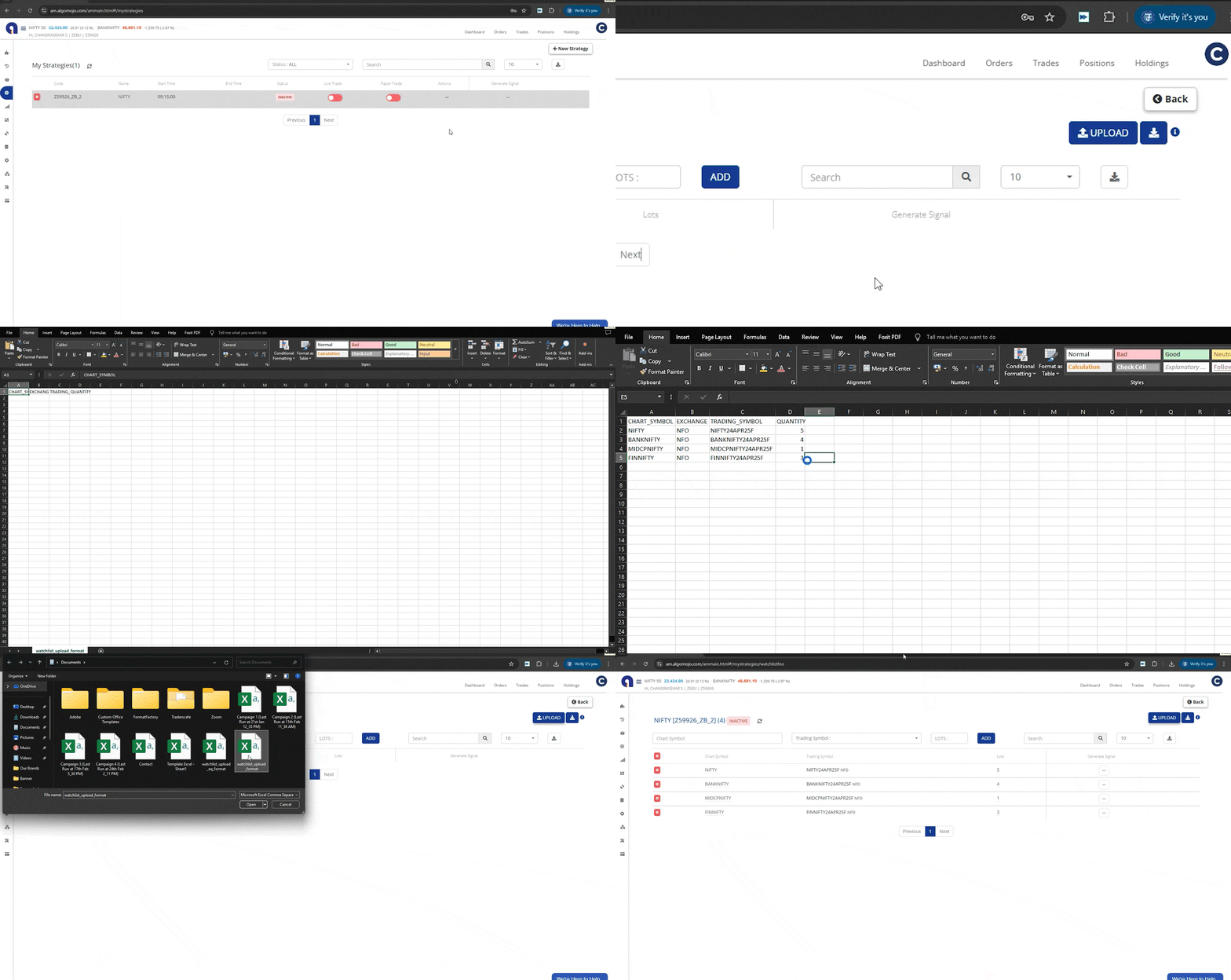
<figure><img src="https://3325206621-files.gitbook.io/~/files/v0/b/gitbook-x-prod.appspot.com/o/spaces%2FVBwGEcLA1yP8wEVFrXXf%2Fuploads%2FlvsFM7D7163j8mVhqviV%2FWatchlist.gif?alt=media&#x26;token=dc9f661e-d9d2-4980-81cf-ef7c97ee4195" alt=""><figcaption></figcaption></figure>

The Algomojo app enables users to upload their watch list directly from their system via a CSV file using the upload button in the watchlist section.

### CSV Format

The basic format to be followed by a user while uploading a CSV file to the watchlist section.

<table><thead><tr><th width="197">Columns </th><th width="259">Description</th><th width="92">Mandatory</th><th>Possible Values </th></tr></thead><tbody><tr><td>CHART_SYMBOL</td><td>Symbols that are compatible with various tools such as TradingView, Amibroker, and Chartink</td><td>Yes</td><td>INDHOTELS</td></tr><tr><td>EXCHANGE</td><td>NSE, NFO, BSE and BFO</td><td>Yes</td><td>NSE</td></tr><tr><td>TRADING_SYMBOL</td><td>Symbols which are accepted by the broker</td><td>Yes</td><td>INDHOTELS-EQ</td></tr><tr><td>QUANTITY</td><td>Total number of stocks</td><td>Yes</td><td>35</td></tr></tbody></table>

## Tradingview Watchlist&#x20;

```
 {
  "date": "{{timenow}}",
  "symbol": "{{ticker}}",
  "action": "{{strategy.order.action}}"
 }
```

If you plan to trade multiple symbols using a single strategy, you must add all the symbols to the watch list. The chart symbol serves as a unique identifier for the script you wish to trade. Make sure to include the specified Custom Data in the Tradingview Message box, and insert the chart symbol in the "{{ticker}}" field. Additionally, you will need to create separate alerts for each symbol you intend to trade on Tradingview.

**Video Tutorial:**&#x20;

{% embed url="<https://vimeo.com/993925094>" %}

The video above can be used as a reference.

### **How do you delete all symbols from the watchlist?**

Managing your watchlist just got easier! With the new **“Delete All”** functionality, you can now quickly remove all symbols from your watchlist in one click, making it simpler to organize and update your trading symbols.

<figure><img src="https://3325206621-files.gitbook.io/~/files/v0/b/gitbook-x-prod.appspot.com/o/spaces%2FVBwGEcLA1yP8wEVFrXXf%2Fuploads%2FejSZ89UuHEepFMgrsrPI%2FScreenshot%202024-09-10%20133422.png?alt=media&#x26;token=f8e95036-577c-43de-a2b9-d43768f876f8" alt=""><figcaption></figcaption></figure>

<figure><img src="https://3325206621-files.gitbook.io/~/files/v0/b/gitbook-x-prod.appspot.com/o/spaces%2FVBwGEcLA1yP8wEVFrXXf%2Fuploads%2FxgdHYL8HtgnX4DD5QXrK%2FOut-85%20(1).gif?alt=media&#x26;token=433a2244-5a30-4078-b6fb-b19647dfb361" alt=""><figcaption></figcaption></figure>
